WinDirStat User Guide
A walkthrough of the main interface components and how they help you analyze disk usage.
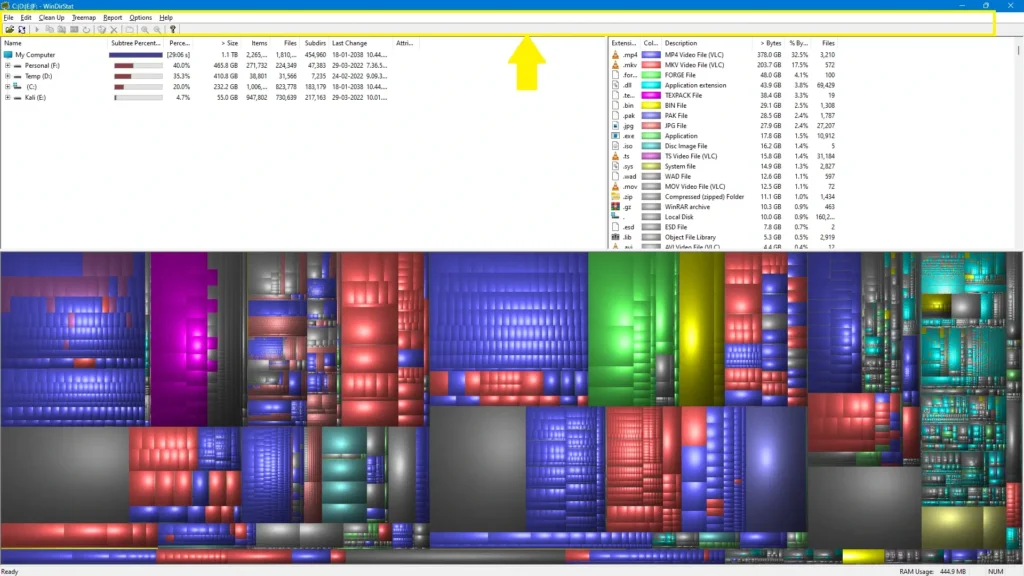
Primary workspace overview
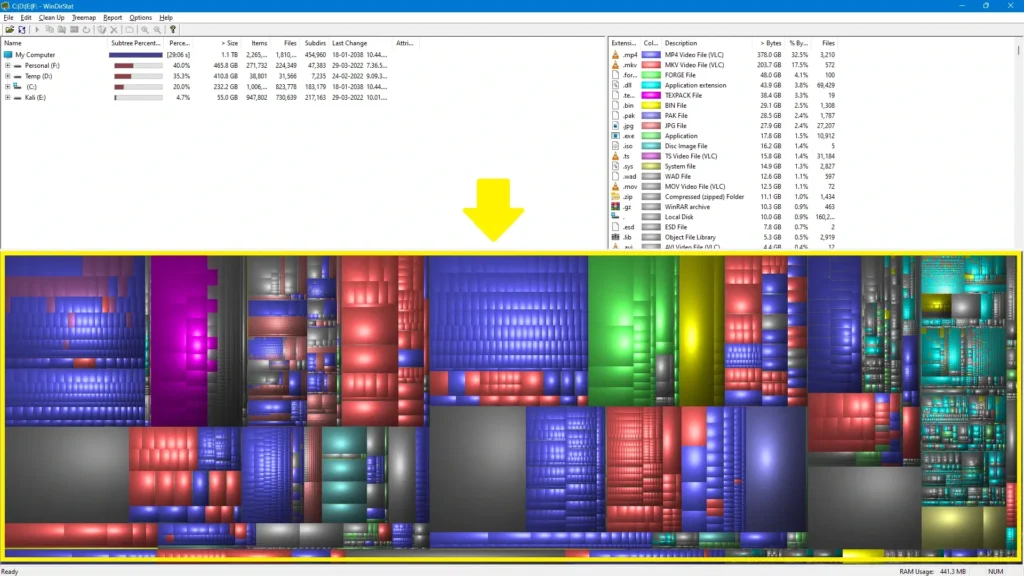
The default layout unites the three core panels: a size-sorted folder tree, the interactive treemap, and the file-type legend. This panoramic view gives you the complete WinDirStat experience at a glance.
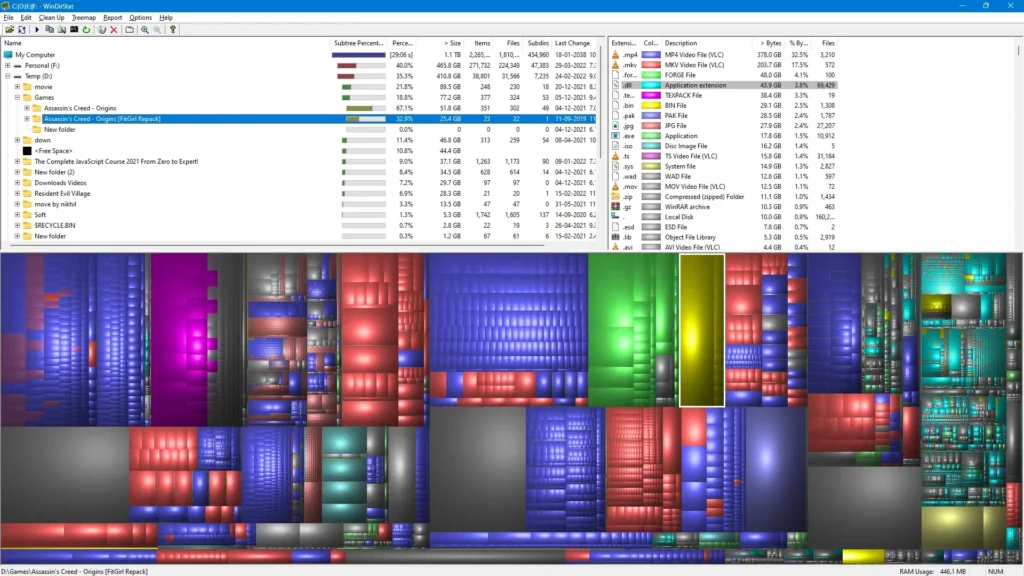
Scan finished notification
Once WinDirStat finishes traversing the disk, a compact dialog appears to confirm completion. This notification signals that enumeration is done and you can begin exploring the results.
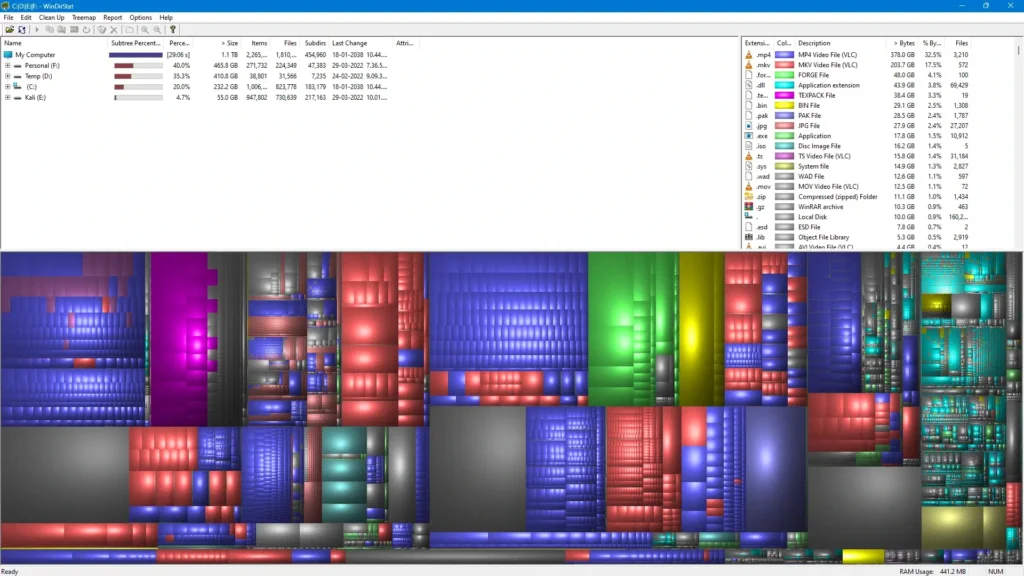
Folder tree — every item sorted by footprint
The left panel resembles Windows Explorer, yet every entry is ranked by total occupied space. Drill down through paths to identify which branches dominate your storage.
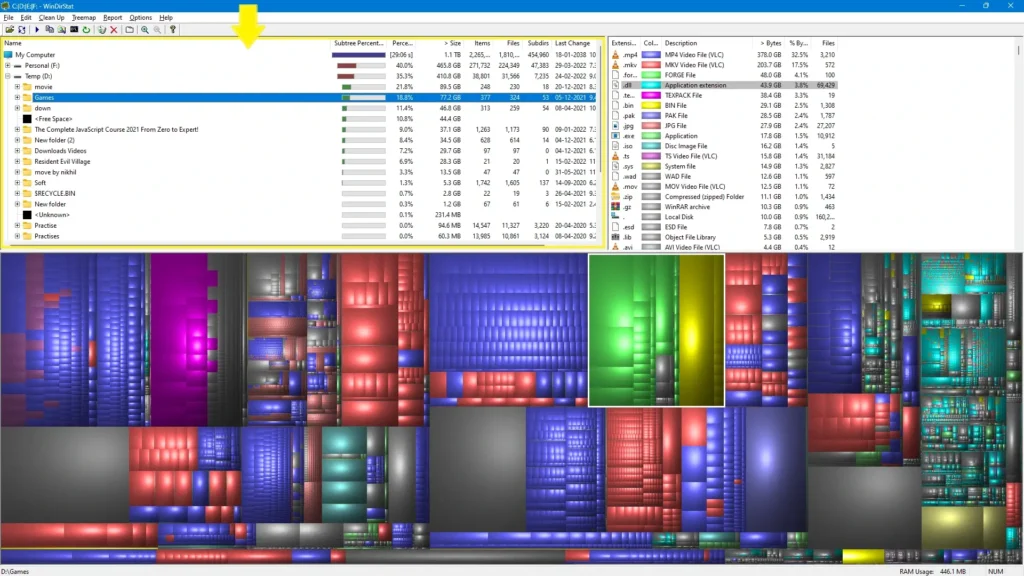
Treemap interaction — pinpoint any file instantly
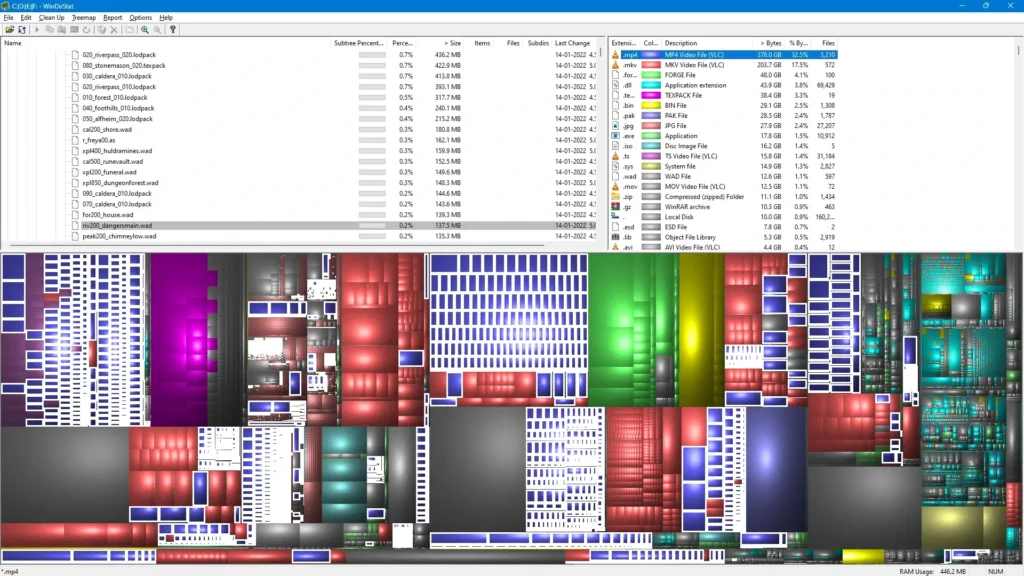
Whether you click a large swath or a tiny sliver, the corresponding item is highlighted and identified. This lets you jump straight from the visual map to the exact file without guessing.
Type legend — file categories and color mapping
The right-hand list categorizes space by file extension and controls the treemap palette. Selecting a category emphasizes matching regions on the canvas, creating a two-way visual link between the legend and the map.
Menu bar — top-level commands and tools
The traditional menu bar provides cleanup actions, display settings, and advanced tools without cluttering the workspace. You get both visual exploration and conventional menu-driven control in the same session.